
Overview
- Detect duplicate users
- Merge profiles that are duplicates
- This page will automatically detect user profiles that are the same.
- This will save you time so you can seamlessly merge users with out losing Course progress.
If you want to know about Understanding the Users Section, please click the link!
What is Covered
- Locate the Duplicate Detector
- Duplicate Detector List Breakdown
- Using the Duplicate Detector
- What information is merged
Locating the Duplicate Detector
Go to Menu---> Users---> Duplicate Detector
Duplicate Detector List Breakdown
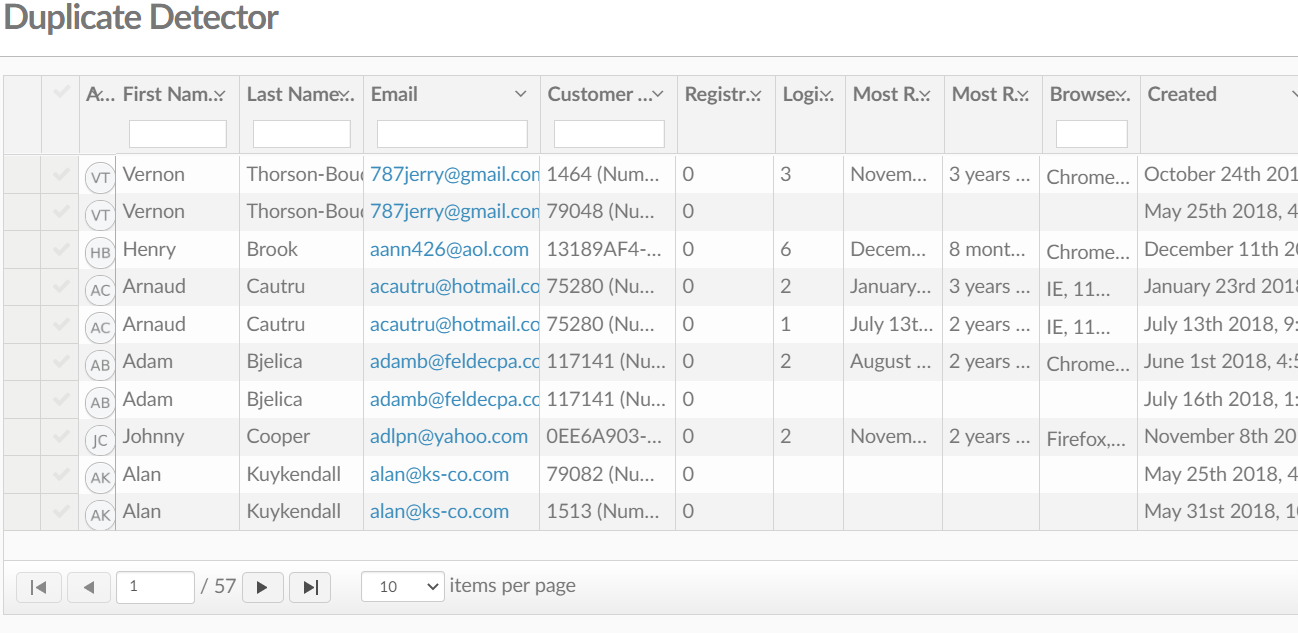
On this page, you can see possible duplicates that may have been created.
For each profile you will see:
- Avatar, First Name, Last Name, and Email
- Customer Member ID
- Registrations- Number of course registrations
- Logins- Number of logins
- Most recent login
- Most Recent Activity
- Browser Used
- Created- When the user was created
- Updated- When the profile was last updated
- ID-specific creation ID
- Owner- Who made the user
Each profile, even if it's suspected to be a duplicate, will show up as its individual profile.
Using the duplicate Detector
On the right-hand side of the Duplicate Detector list press the drop-down arrow (also on the right end of the row which has the profile you want to duplicate).

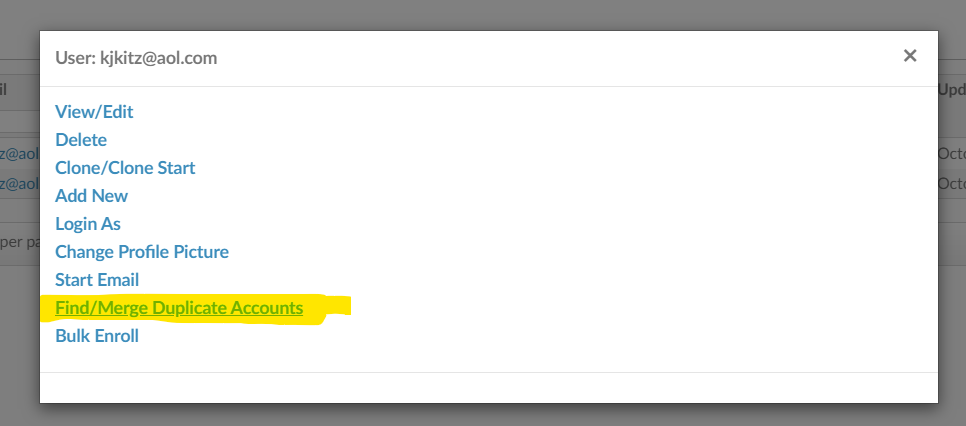
From this list, you can do several things but you want to select the second to last option
Find/ Merge Duplicate Accounts
When you select these two user profiles will show up at the bottom (see below).
If two profiles do not show up. Click the checkmark on the left side of the profile to merge it with the originally selected profile.
What Information is Merged
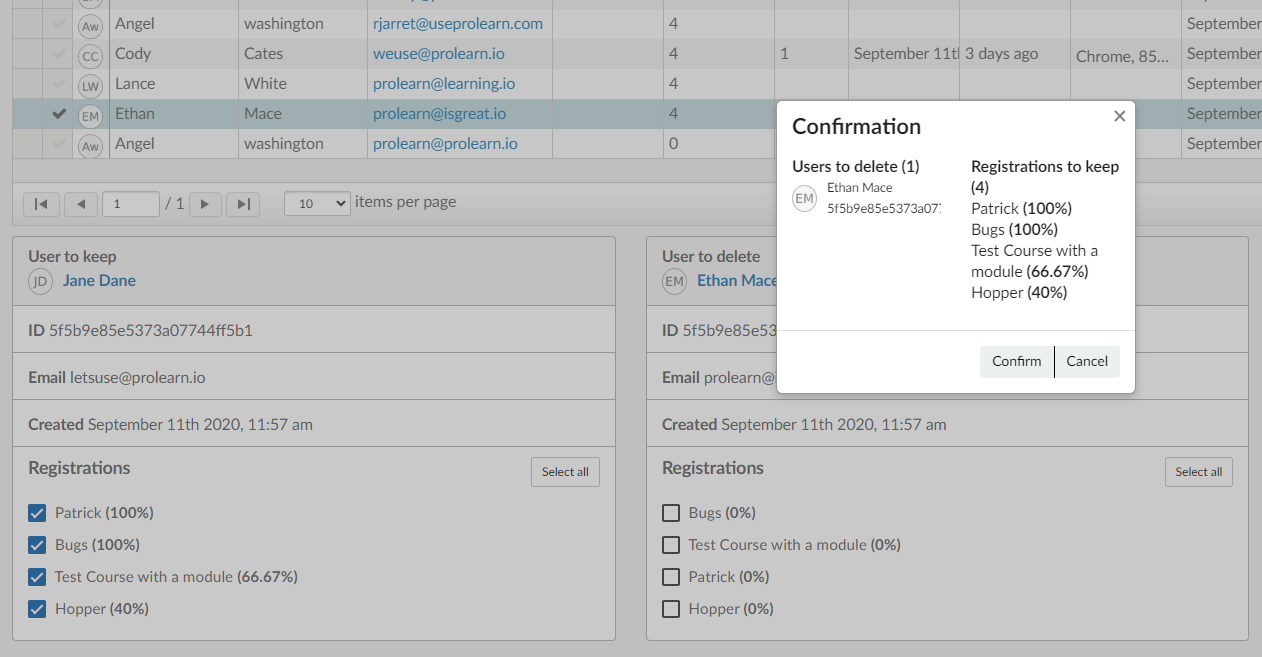
Here you get to choose what information is merged.
Select what Registrations you would like to keep on both sides of the duplicate accounts.
OR, Click the Select All option on both accounts. A confirmation box will show up. It will show the user that is to be deleted and the registrations that will be kept.
If the information is correct select "Confirm"