
Overview
- Discussions are chat forums that can flexibly be used (and reused!) in courses, activities, or in standalone user groups.
- Users can comment in to answer questions or to reach out to peers, members, course instructors, and more
- Similar look, feel, and user experience to Facebook discussions
- These make learning more collaborative!
If you want to know about Creating a User Group or Understanding the Community/ Messaging Section, please click the links
What is Covered?
- Locating the Discussions List Page
- Navigating the Discussions List Page
- How to create a Discussion
- Link Attachments Users and Course
- Useful Links
Video Walkthrough
(Video not working?--->https://youtu.be/E_IDYPh5lRs)
Locate the Discussions Page
Go to Menu---> Community/ Messaging--->Discussions
Navigating the Discussions List page
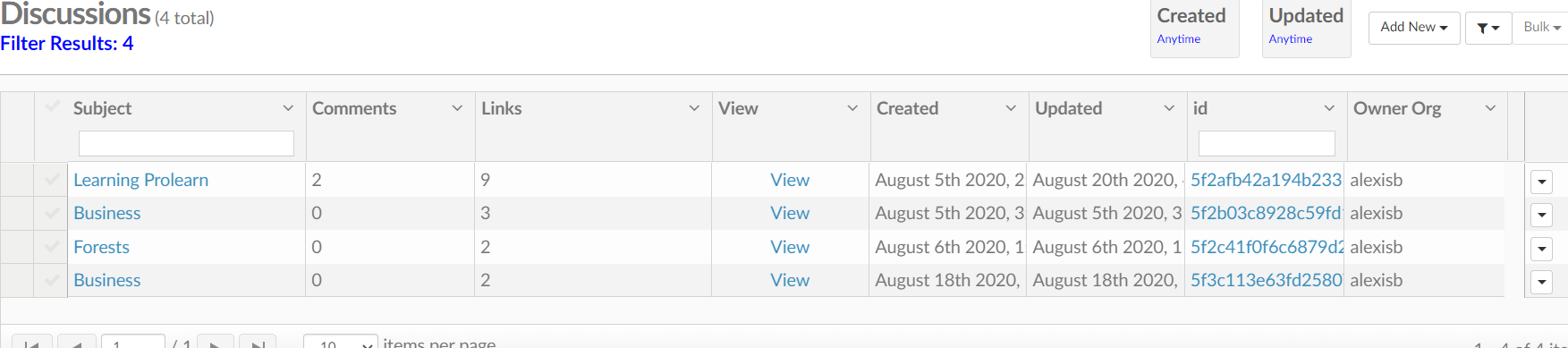
- Subject- Topic or Name of the Discussion
- Comments- Number of comments
- Links- How many courses the discussion is linked to
- View- Takes you to the discussion board
- Created- When it was created
- Updated- when it was last updated
- ID- the specific creation ID
- Owner- who created it
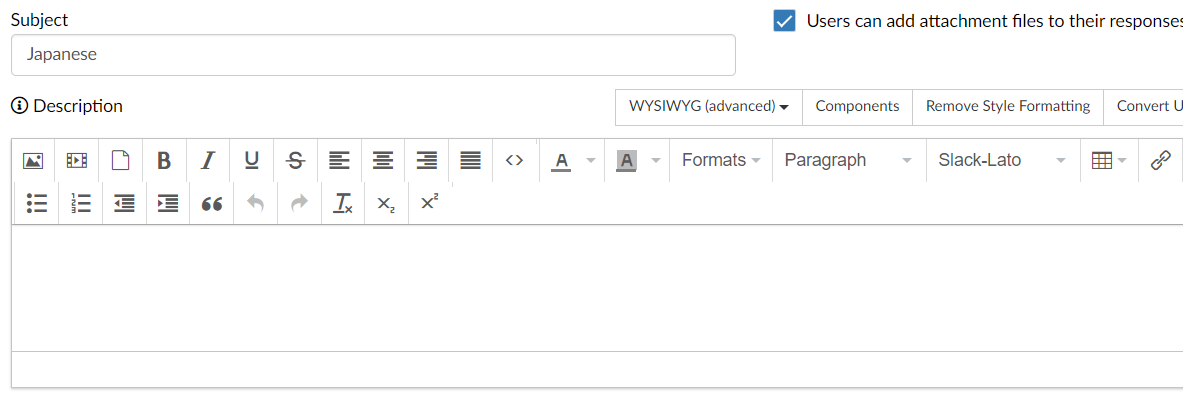
How to create a discussion
- Press the ADD NEW button in the top right-hand corner of the Discussions page
- Select From Editor
- Enter Fields
- Subject/ Discussion name
- Users can add attachment files
- Description- Write a question or expand on discussion subject, give prompt, and so on
- SAVE
How to link Attachments, Users, and Courses
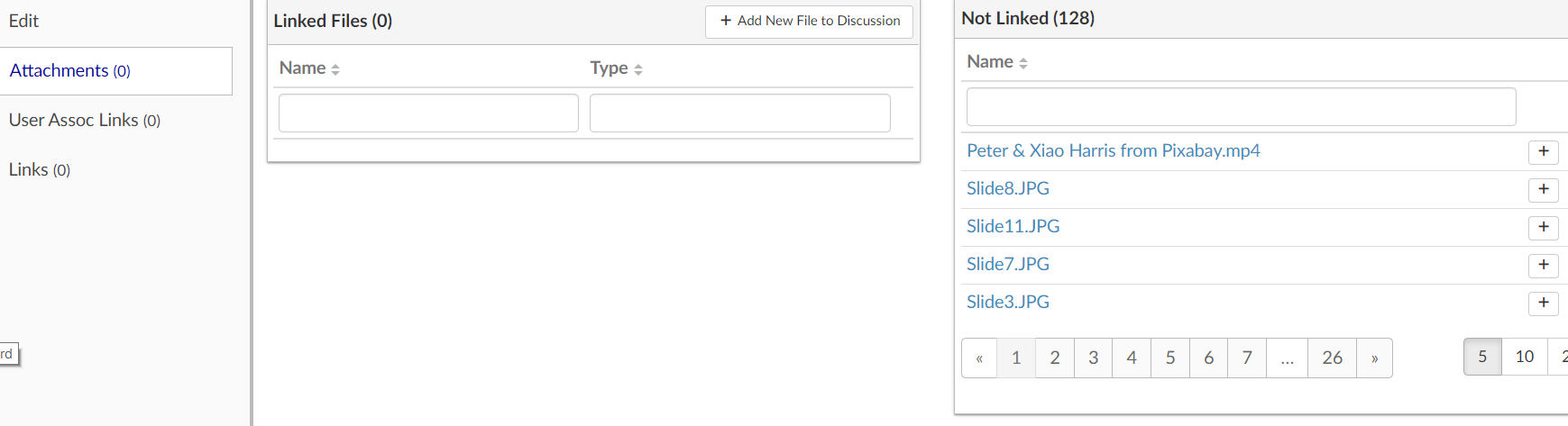
In the Attachments, User Assosc Links, and Links (courses) section you will see a page that resembles the one above
To link a document (that has already been uploaded), a User, or a course just press the plus button on the right-hand side of the page.
Use discussions to help your students get the most out of their learning experience!