
Overview
- The Assessments page is where you go to edit quizzes or assessments
- There are many options to toggle in the edit tab that can enhance your end-user experience
- Learn about the different tabs on the Assessments page
- Using these will help you get the most out of Assessments for Users and Admin!
If you want to know about Create other activities or Creating a Course, please click these links!
What is Covered
- Understanding the Assessment Editor different tabs
Understanding the Assessments Tab
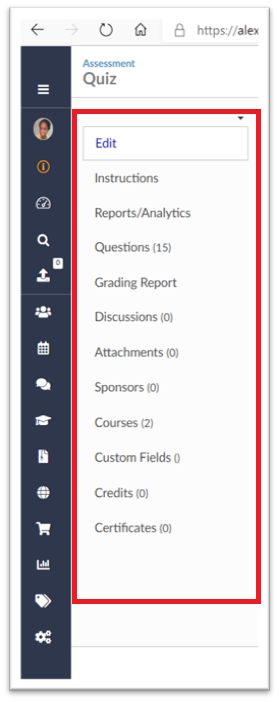
- Edit
- Here is where you can change the options that affect how the test is seen by the viewer. Among the several options, you can change the layout, choose if the students get feedback, change the order of the questions, choose how many questions show (10 randomized questions out of 20), give a certain amount of attempts, and even put a time limit. For more information about this section please watch our video about Assessment Options.
- Instructions
- Put instructions or more detailed information about the quiz or test in this section. As an example, you could write what sections of a lecture or textbook are covered in this section
- Reports/ Analytics
- In this section, you will see all the users who have taken the test, Pass/ fail ratio and a break down of response for each question.
- You can also filter the course you are seeing analytics for. This comes in handy if you reuse a quiz or survey.
- Questions
- Here you can add questions to your test
- Grading Report
- Here you see a list of all users who took the test and what their scores were. Clicking on their name will allow you to go into their profile and edit what you like
- Discussions
- Here you can link discussions - Check out our tutorial on how to create tutorials!
- Attachments
- Here you can attach documents that may be relevant to the test
- Sponsors
- Here you can link Sponsors
- Courses
- Here you can link the test to courses
- Custom Fields
- Here you can create custom fields in the test section
- Credits
- Add/ Link credits to your test
- Certificates
- Add a certificate for your test
We have several other videos and content that will help you understand how to use each tab to its fullest extent. Please click on the links in the article to learn more!