
Overview
- Learn to create a Matching Question
- Use it in an Assessment
- Try adding different question types to your surveys and assessments for variety
- Matching questions are most useful in assessments and short quizzes.
If you want to know about Question Types or Creating an Assessment, please click the links!
What is Covered
- How to create a Matching Question
- Useful Links
Video Overview
(Video not working?--->https://youtu.be/il3-VzoomLA)
Text Overview
- Open the Menu ---> Learning Content--->Questions
- In the top right-hand corner select the + Add New button
- Change the question type to Matching Questions
- Add a Name
- Type in the Question
- Enable User Comments ( optional-User can comment on a question)
- Fill out the feedback sections (optional)
- Enter the answer choices
- For the answers, there is a Column of Choices and there is a list above the button, + Add Answer Choices, fill out both of these columns
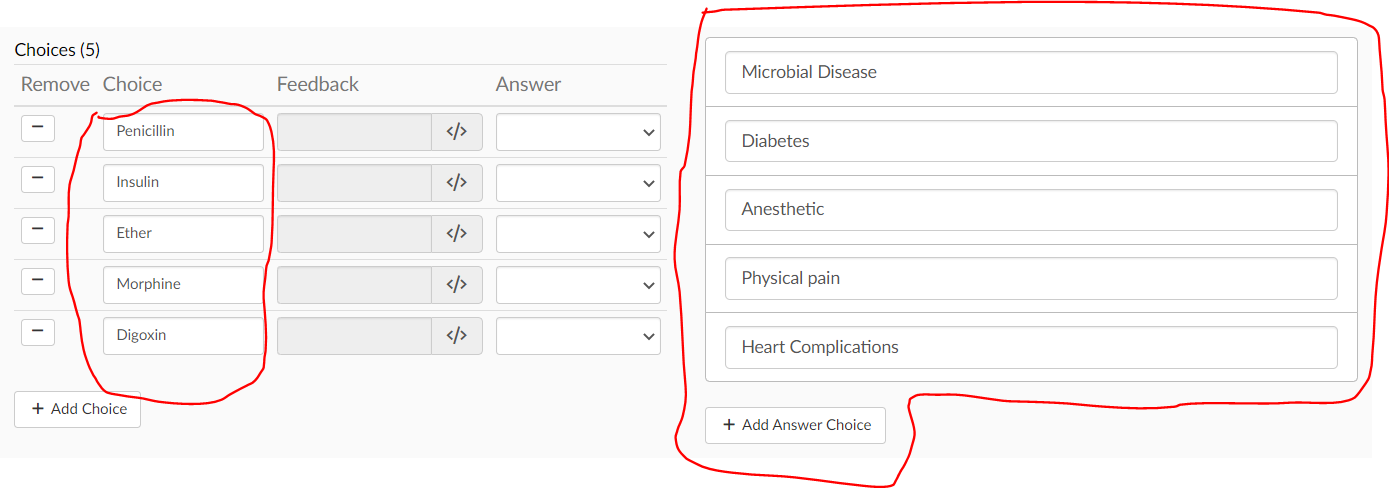
- For matching, you have to match Choices to Answer Choice
- For the answers, there is a Column of Choices and there is a list above the button, + Add Answer Choices, fill out both of these columns
- Select the Correct Answer
- In the answer column, you match the Answer Choice with the correct selection in the choice section. Press the drop-down arrow (circled in red)
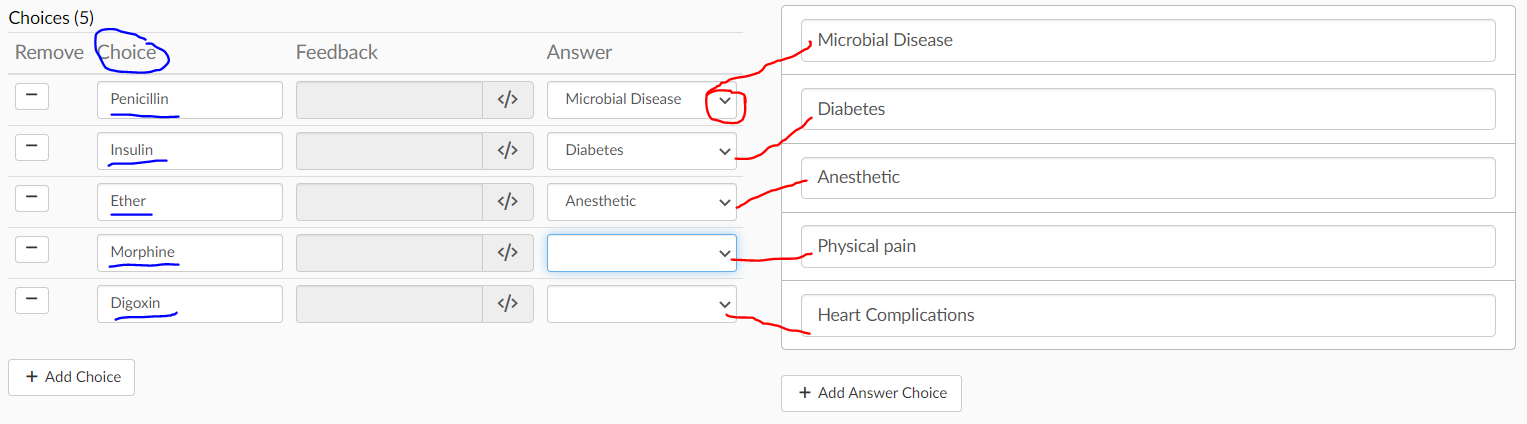
- In the answer column, you match the Answer Choice with the correct selection in the choice section. Press the drop-down arrow (circled in red)
- Add feedback for each answer choice (optional)
- Save and Preview- make changes if necessary and save again
- Once everything is as you would like it press Save & Close, then you are done!