
Overview
- Create Checkbox Questions
- Add them to Assessments or surveys
- Allows users to select multiple answers
- Be sure to try adding different questions types to your quizzes to spice it up!
If you want to know about Question Types or Creating an Assessment, please click the link!
What is Covered
- Creating a Checkbox question
- Answer Feedback options
Video Walkthrough
(Video not working?--->https://youtu.be/BMo9nSsc2Lg)
Text Walkthrough
- Open the Menu ---> Learning Content--->Questions
- In the top right-hand corner select the + Add New button
- Change the question type to Multiple Choice (multiple answers)
- Add a question Name
- Select Preferred Question Layout (default is vertical)
- Type in the Question
- Add feedback (optional)
- Add Answer Choices
- Select the Correct Answers
- Save and Preview- make any necessary changes
- Save and Close when you are finished, there you have your completed Multiple Choice Question!
Extra Information- Answer feedback
You can also add feedback for each answer! To the left of the answer checkmark box, you will
see an icon---> </>
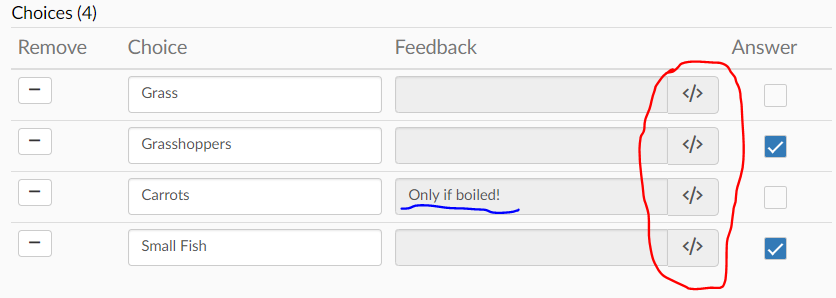
Click on that to open up a box where you will be able to type in feedback for the Answer Choice!