
Overview
- Learn how to create a Custom Report
- View registrations and each users progress
- Set a date range for data
- View the analytics for multiple courses at once
- Allows you to easily keep track of how many people have taken your class.
If you want to know more about the Analytics Section, please click the link!
What is covered
-
Preview
- Creating a Custom Report
Preview
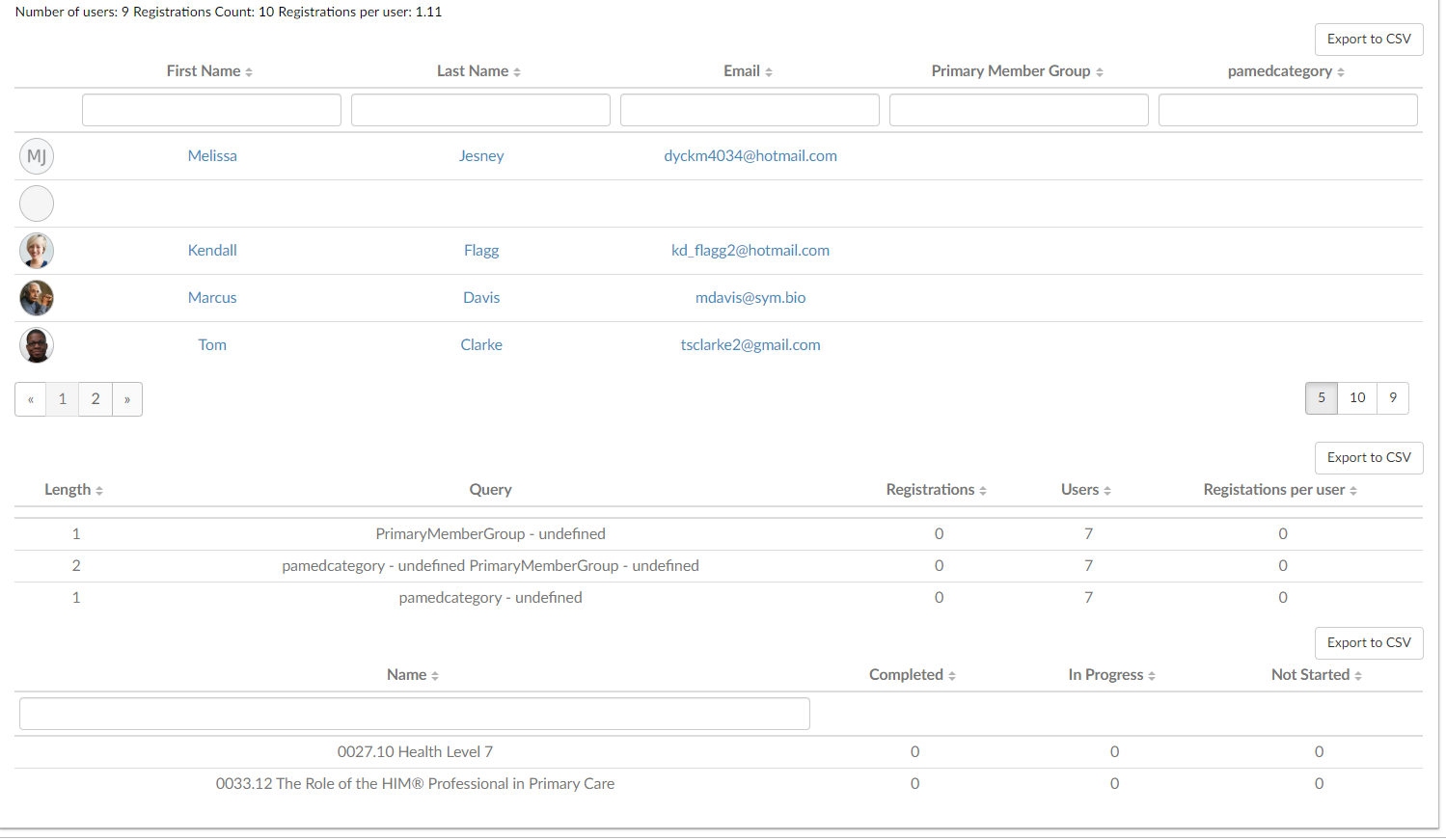
This is what a report will look like when it finished
Creating a Custom Report
- Go to Menu--->Analytics---> Custom Reports
- In the top right-hand corner, select Add New
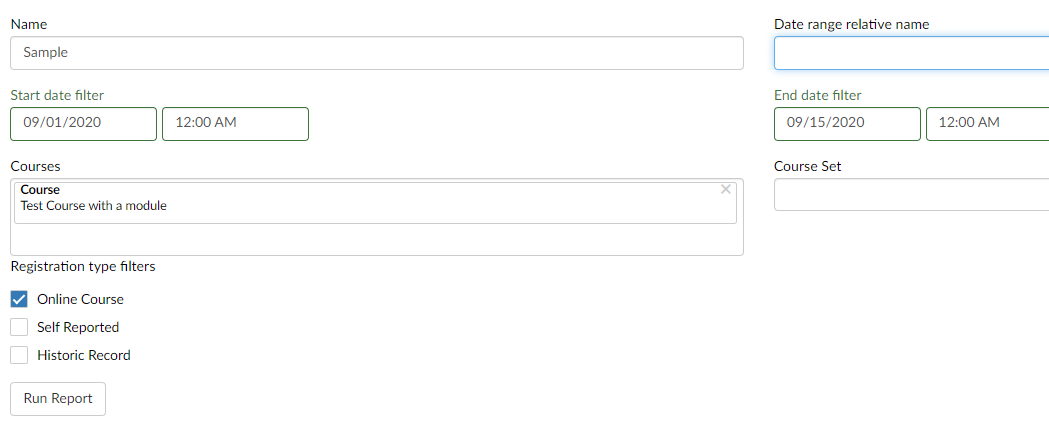
- Fill in the necessary information
- Name
- Name of the Report
- Date range relative name
- Here you can select several options: Since yesterday this time, the past 30 days, the past month, the past year, last year, and so on.
- If you select this option, options 3 and 4 will disappear
- Start date filter
- Set a specific start date for the report
- End date filter
- Set a specific end date for the report
- Courses
- Select the courses that you would like results for
- Course Set
- If you have course sets made you can select them here
- Registration Filter Type
- What kind of registrations do you want the report to be about?
- Online course
- Self Reported
- Historic Record
- What kind of registrations do you want the report to be about?
- Name
- When everything is filled in select Run Report
And there is your report!
If you have no students registered to a course that you run a report for, the report will be blank!
Have fun creating!