
Overview
- Excel Spreadsheet are simple an easy to make
- Using them, you can import users, tests, questions, courses, register users, and more.
- ProLearn can provide you with several different templates
- The system will automatically create activities for assessments and questions for each question imported
If you would like to know about Importing an Excel Spreadsheet or The Media and Files Section, please click the links!
What is covered
- Options for spreadsheet importation
- How to import Questions
- What can you import
- Import Users
Make the Spreadsheet yourself
You can make these Spreadsheets yourself with ease. You will see some examples in the video of formatting options
We can create the Spreadsheet for you!
We can also do the formatting and enter your information for to make this a breeze. All you have to do is drag and drop the spreadsheet we create into the Bulk Import Section. Please contact us for more details!
Text Walkthrough
Import Questions
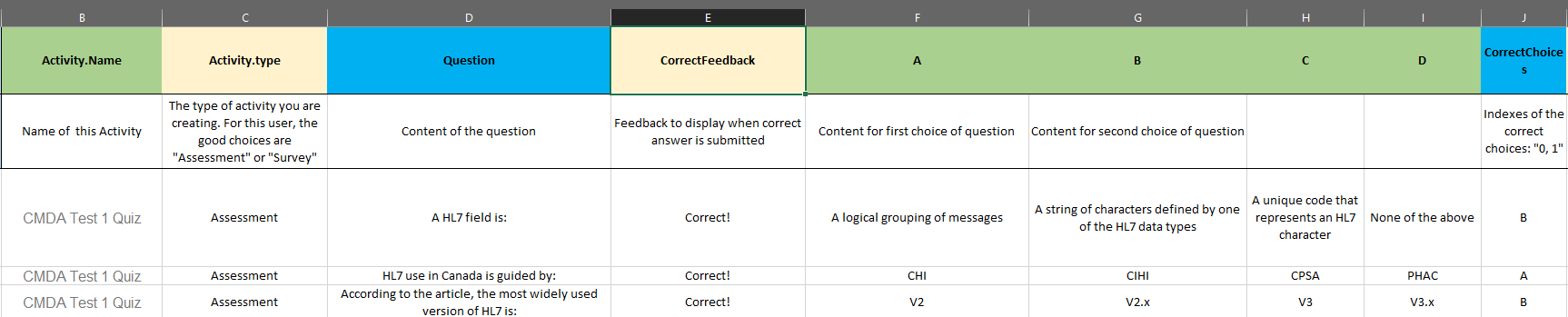
- To import questions the only areas you need filled are the areas highlighted in blue
- Question
- Correct Choices
- Along with the blue areas we recommend filling in the areas in green
- Activity Name (gives the question a name-see in video)
- Answer choices (A,B,C,D)
- When formatting the section names, separate words with one period or NO SPACES
- i.e. "Activity.type" or "CorrectFeedback"
- Then for each question fill in the necessary information
- You can add an array of sections, namely all the sections in the question edit page
- Format you Excel Spreadsheet to your liking and any any extra section you want!
What can you import with Questions?
- You can import questions with a course and a survey
- Questions with a course
- Assessment with question in a course
- Matrix questions and so much more.
- Reach out to us for templates and more information!
Import Users
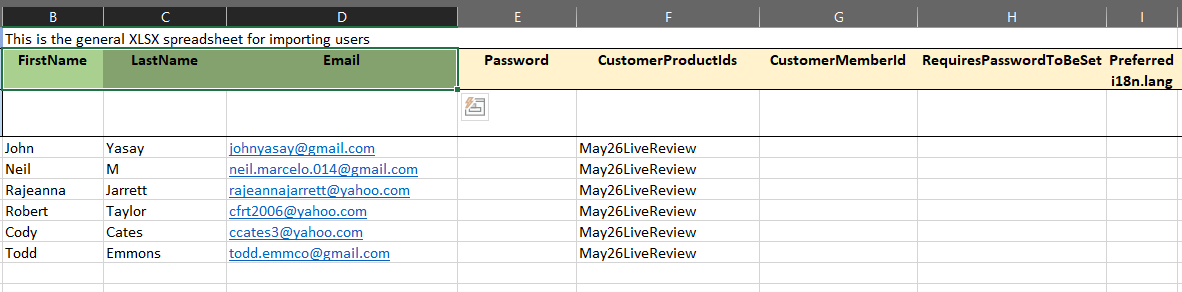
- To import users the only areas that are necessary are the First/ Last Name and their emails.
- You can register them to products or classes by putting the Product Id under the "CustomerProductIds" section.
- You can also add their password, Member Id and preferred language.
- When formatting the sections above, separate words with one period or no spaces.
- i.e. "FirstName" or "Last.Name"
Now you know how to Upload an Excel Spreadsheet!
Have fun uploading!