
Overview
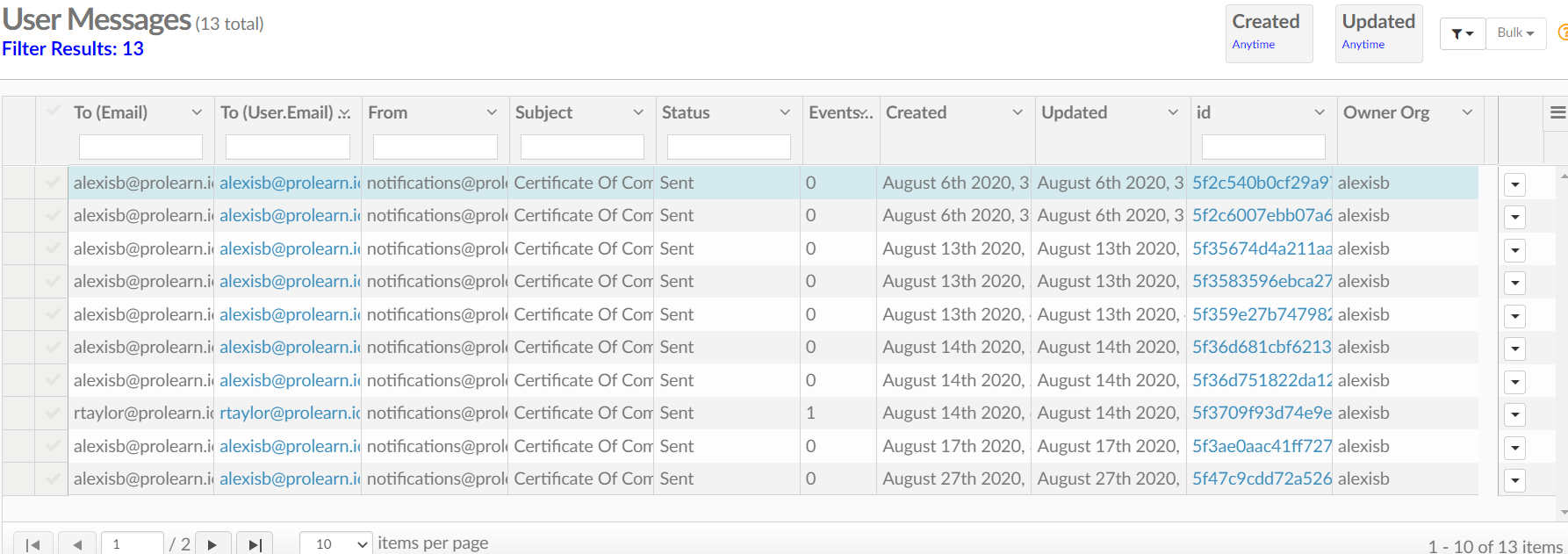
- See all the messages the system has sent out
- See the user the message was sent to
- Clicking on the user email will take you to the users profile
- Clicking on the email ID will take you to the message itself.
If you want to know more about Understanding the Community/ Messaging Section, please click the link!
What is Covered
- Getting to the User Messages List Page
- User Messages List Page Break Down
- Understanding the Email Page
- Useful Links
How to navigate the User Messages List Page
To get to the User Messages List
Go to Menu---> Community/ Messaging---> User Messages
User Messages List Breakdown
- To (Email)
- From (Email)- This is who the email will say it is from for the recipient (To email)
- From- the system sends these automated messages
- Subject- Reason the email was sent
- Status- Was the email sent or not
- Events- this you can see when you click on the email ID. It will show if the email was received and if it/ when it was opened.
- Created- When it was created
- ID- the unique creation ID. Click on this to get to the email that was sent
- Owner- who created the course or activity that caused the email to be sent
Understanding the Email Page
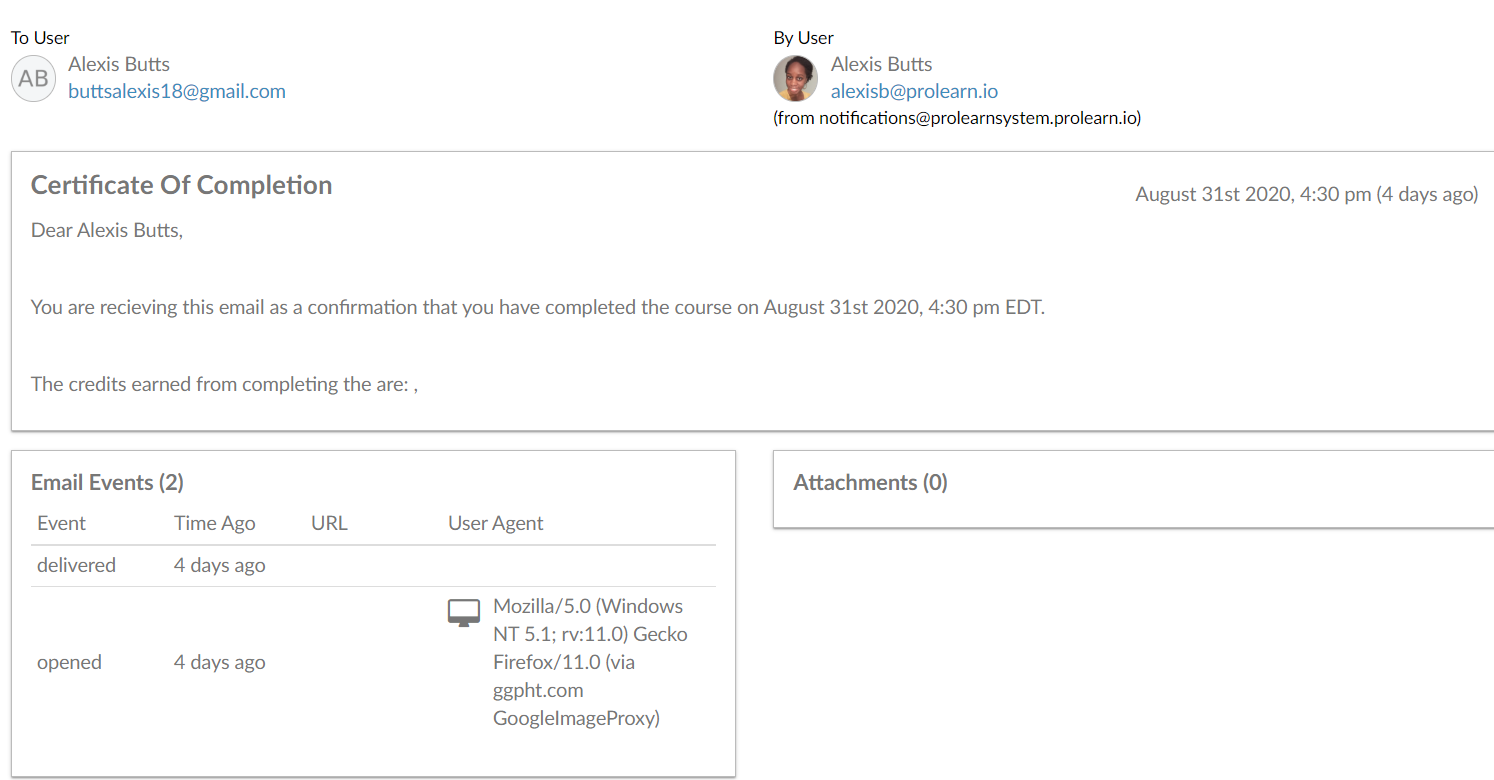
To see the email contents click on the email ID on the right end of the page.
You will see the actual email that was sent.
The events box will show you when the message was delivered and when it was opened. On the User Messages page, the number in the Events Column is what this represents.
The attachments box will show anything that was attached to the email.
Please be sure to check out our other help articles and videos!
Have fun creating!