
Overview
- When creating a live zoom session you have to add them to a course
- You can add multiple live zoom sessions to a course
- That way you can host the same meeting and give students different options (times) to attend
- Or if you are doing a series of live videos you can put them all in the same course so after attending all the meetings students will get their certificate.
If you want to know how to create a Live Zoom Meeting, please click the link!
What is Covered
- Preview
- How to add multiple zoom meetings to a Course
- Student View
Preview
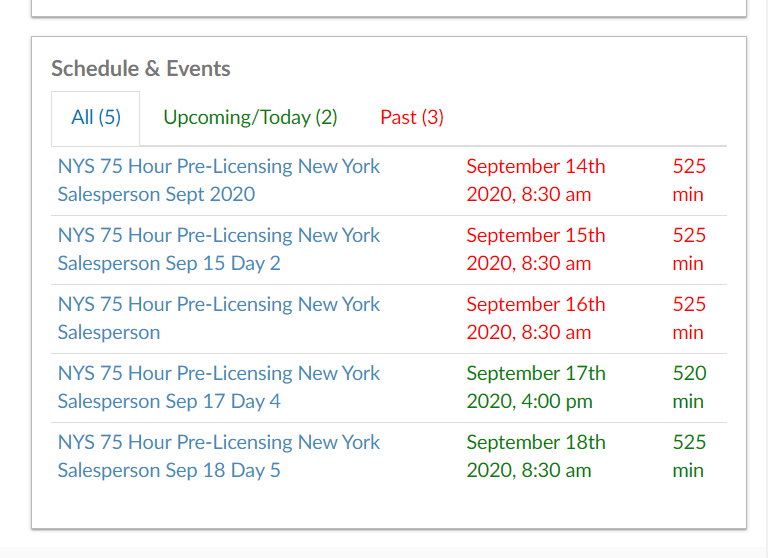
Above is what the editing page of a course will look like if you have multiple meetings scheduled.
Adding multiple Zoom meetings to a course is simple if you know how to create a zoom meeting. If you do not know how to create a zoom meeting you will find the text walkthrough below but please be sure to watch the video tutorial too that is linked above!
Text Walkthrough
- Go to Menu---> Learning Content---> Courses
- Create your course
- Enter at least a name and a display name
- Select Save
- Go to the Activities tab of the course you just created.
- Select +Add Activities
- Select ILT (Instructor Lead Teaching) Activity
- Create ILT Activity
- Enter Name and Display Name
- Target Attendance Setup---> Manual
- Sync Date and Time (If you select) put in the date and time to match your zoom meeting.
- Select save and continue editing.
- Add a cover image if you desire.
- If you have a scheduled item created add it
- If you have not created a scheduled item select +Add New Scheduled Item
- Create Scheduled Item
- Enter Name, Time Zone, and Start time
- Enter any other necessary information
- Save & Continue Editing
- Go to the Zoom tab
- Change Zoom Meeting type---> Zoom Meeting or Zoom Webinar
- Save
- View Setup on Zoom if desired
- Add your scheduled item to your course
To add multiple Zoom meetings to your course, repeat steps 3-4 as many times as necessary. You will be creating ILT activities and adding them to scheduled items. You will then add the scheduled item to the Course you made.
Student View
This is how the meetings will look for a student viewing their course
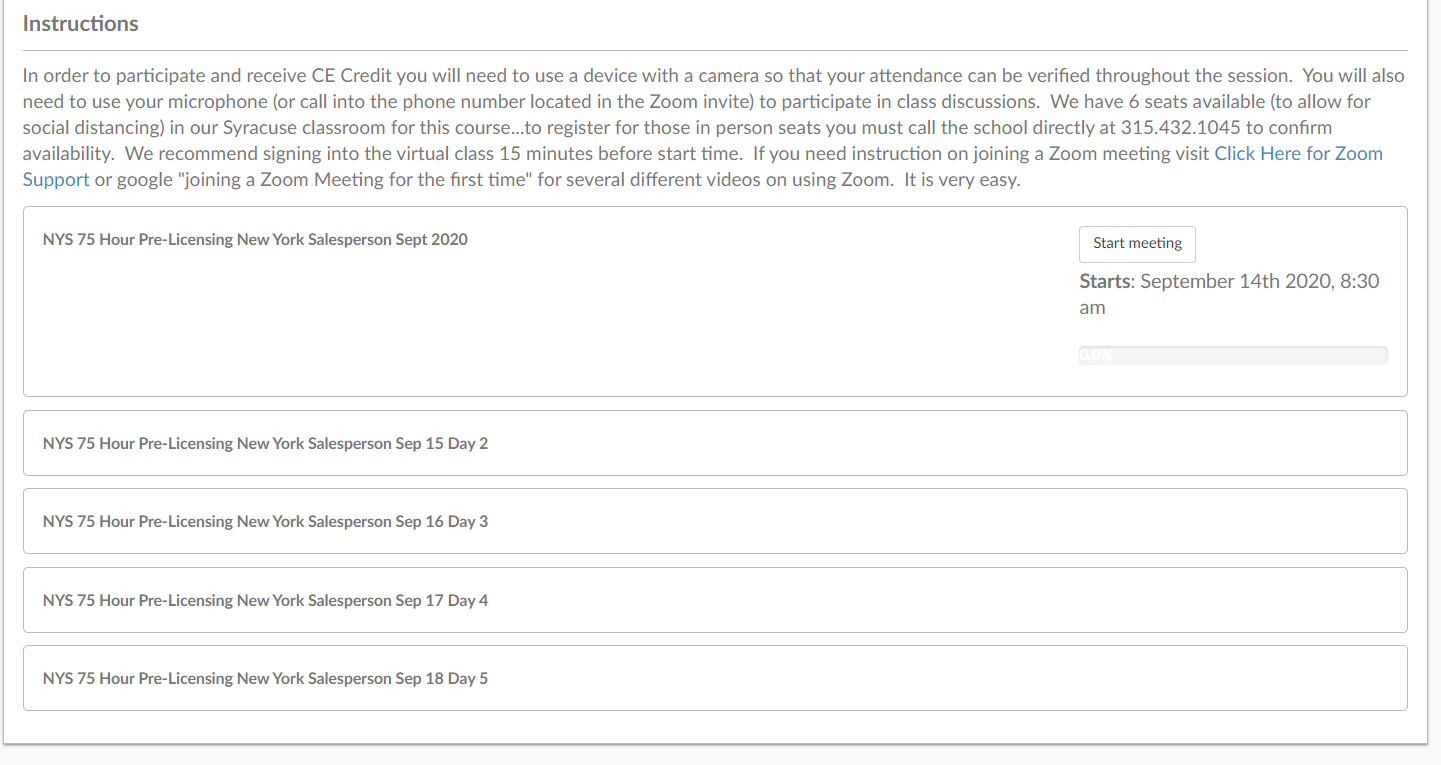
Students will Be able to view each meeting and just attend the day the desire to.
You now know how to create a course with multiple Zoom meetings
Have fun creating!